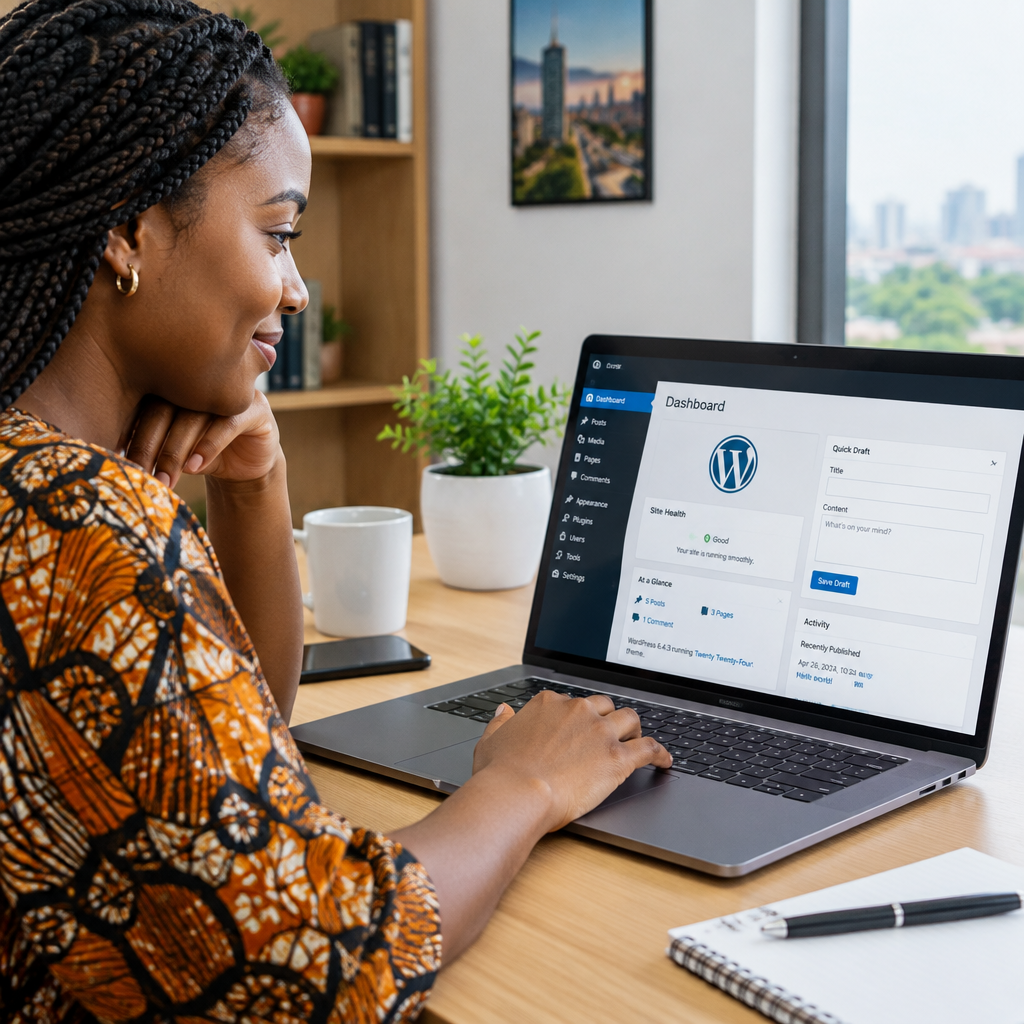
How to Manage WordPress When You Are Not Technical
Managing a WordPress website can feel intimidating when terms such as plugins, themes, hosting, SSL and backups are unfamiliar. However, you do not need to become a developer or server administrator to keep a business website working well.
The practical goal is not to understand every technical detail. It is to know which routine tasks matter, which changes are safe to make yourself and when a managed WordPress support service is the better option. This is especially useful for Nigerian small businesses, entrepreneurs, creators and organisations that need their website to support customers without becoming a second full-time job.
Understand what you are responsible for
A WordPress website usually involves several connected parts:
- Domain: the address people use to find your website.
- Hosting: the service that stores your website’s files and database and makes them available online.
- WordPress: the content management system used to create and manage the site.
- Theme: the design framework controlling much of the website’s appearance.
- Plugins: additional tools that add features such as contact forms, payments, search engine controls or security functions.
- SSL certificate: the security technology that enables HTTPS in a visitor’s browser.
These parts work together, but they are not the same thing. For example, renewing a domain does not renew hosting, and changing website content does not necessarily fix a hosting or email problem.
Before making changes, confirm that you can access your domain account, hosting account, WordPress administrator account and business email. Keep the registration and login details in a secure password manager or another protected system. Your business should retain control of these essential digital assets rather than relying entirely on a former employee, developer or unknown third party.
The everyday WordPress tasks you can handle
Editing pages and posts
Most non-technical website owners can safely update text, images, opening hours, product descriptions, announcements and contact details from the WordPress dashboard. Work carefully and preview the page before publishing.
When adding images, use clear file names and resize very large files before uploading them. A phone photograph may be much larger than the space it needs on a webpage, which can make pages slower for mobile visitors. Add useful alternative text when an image communicates information, rather than treating it as decoration only.
Checking forms and important links
Every few weeks, test the actions that matter to your organisation. Submit the contact form, check the telephone and WhatsApp links, open key pages and confirm that customers can find the information they need. If your website accepts enquiries, a form that appears to work but never reaches your inbox can quietly cost you opportunities.
Updating WordPress components carefully
WordPress, themes and plugins receive updates that may improve compatibility, fix problems or address security weaknesses. Updates are important, but clicking every update without preparation can sometimes create conflicts.
Before updating:
- Confirm that a recent backup exists and that you know how it can be restored.
- Note which plugins and themes are currently active.
- Update one component at a time when practical.
- After each update, open the homepage, key pages, forms and any important business features.
If an update causes an error, do not repeatedly change unrelated settings. Record what changed, contact your hosting or WordPress support provider and ask for help restoring the site safely.
Backups are your safety net
A backup is a copy of your website that can be used after a failed update, accidental deletion, malware incident or hosting problem. Without a usable backup, recovering a website may be slower, more expensive or impossible.
Ask these practical questions:
- How often is the website backed up?
- Are both the files and the database included?
- Where are the backup copies stored?
- How long are they retained?
- Has the restoration process been tested?
A backup is not fully reassuring merely because a control panel says one exists. A business should know whether it can actually restore the site. If you are not comfortable checking this yourself, ask your hosting provider or managed WordPress support team to explain the process in plain language.
Protect the accounts that control your website
Many website problems begin with weak or reused passwords rather than advanced technical attacks. Use unique, strong passwords for WordPress, hosting, domain and email accounts. Enable multi-factor authentication where it is available, especially for administrator and domain accounts.
Limit administrator access to people who genuinely need it. If a designer, staff member or contractor no longer works on the website, remove their access promptly. Keep a record of who has access and review it occasionally.
Also check that your website uses HTTPS and that browsers do not display security warnings. An SSL certificate helps protect information exchanged between visitors and the website, and HTTPS is an important part of a professional customer experience. It is not, by itself, a complete security strategy, so it should be combined with updates, strong access controls and backups.
Know when not to experiment
Some changes are low risk, such as correcting a sentence or replacing a phone number. Others can affect the entire website. Be cautious with:
- Changing the active theme
- Deleting plugins
- Editing code
- Changing database or hosting settings
- Moving a website to another host
- Changing the website address or domain configuration
- Installing several plugins to solve the same problem
If a change could affect the site’s design, checkout process, forms, email, search visibility or availability, create a backup and get advice first. The cheapest option is not always the one with the lowest total cost if an avoidable mistake causes downtime or lost enquiries.
A simple monthly management routine
You can use this workflow even if you have limited technical knowledge:
- Review the website: open it on a phone and computer, check important pages and test the main contact method.
- Check business information: confirm that prices, services, addresses, opening hours and contact details are accurate.
- Review updates: check WordPress, the theme and plugins, but confirm a backup before applying changes.
- Check security: review administrator accounts, password access and any warnings shown by the website.
- Confirm backups: check the latest backup date and know who can help with restoration.
- Monitor renewals: make sure the domain, hosting, business email and SSL-related services will not expire unexpectedly.
This routine does not replace professional maintenance, but it helps you identify problems early and communicate clearly with the person or company supporting your website.
When managed WordPress support makes sense
Managed support can be suitable when you do not have time to monitor updates, test backups, investigate errors or handle security tasks. It can also help when your website generates regular enquiries, supports important business operations or needs changes that you do not want to risk making alone.
When comparing support options, ask what is actually included. Does the service cover updates, backups, troubleshooting, security checks, performance advice and recovery assistance? Can you contact someone when the website is unavailable? Will you still retain access to your domain and website accounts?
The right level of support depends on your website’s size, traffic, email requirements, growth plans, budget and comfort with technical work. A small brochure website may need a simple maintenance arrangement, while an online store or busy organisation may need more consistent monitoring and specialised help.
Keep your website useful for customers
Technical maintenance is only one part of managing WordPress. Review whether the website answers the questions customers actually have: what you offer, who you serve, how to contact you, where you operate and what the next step should be.
For businesses serving customers in Nigeria and West Africa, this may include making pages easy to use on mobile devices, providing accessible contact options and keeping service information current. A professional domain, reliable hosting, domain-based business email, accurate content and clear calls to action work together to build confidence.
You do not need to manage every technical detail personally. Keep control of your accounts, follow a simple review routine, maintain tested backups and ask for support before making risky changes. WordPress becomes much easier to manage when technical complexity is handled deliberately instead of left to become an emergency.