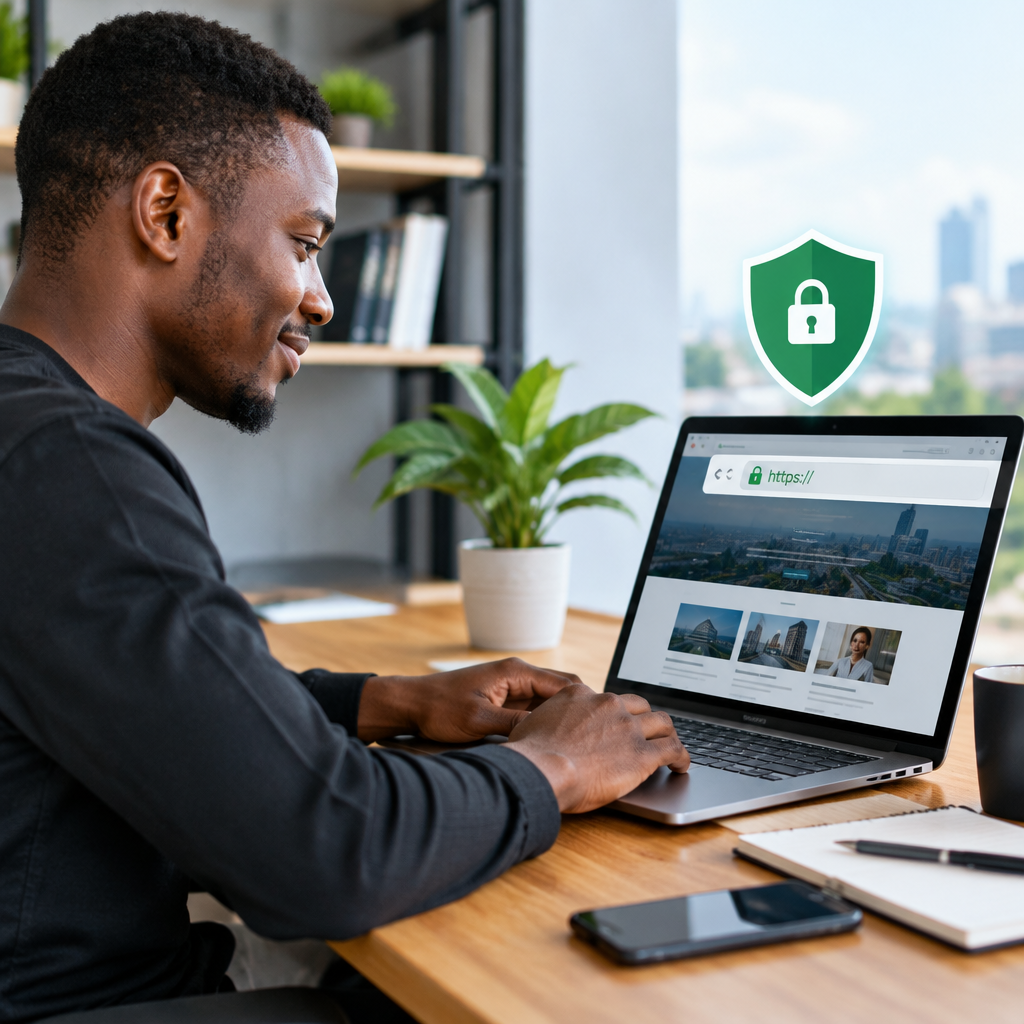
How to Add SSL to Your Website: A Practical Guide for Beginners

How to Add SSL to Your Website: A Practical Guide for Beginners

If your website still opens with http:// instead of https://, visitors may see a security warning or feel uncertain about sharing information. This can affect enquiries, purchases and trust, especially for Nigerian small businesses and entrepreneurs building credibility online.

Adding SSL is the process of installing an SSL certificate on your website and configuring the site to use HTTPS. The technical work is often handled through your hosting account, but understanding the process helps you protect your website, keep control of your digital assets and identify problems when something does not work correctly.

What is SSL and why does it matter?

SSL stands for Secure Sockets Layer. The term is still widely used, although modern website security relies on its successor, Transport Layer Security. In everyday website management, “SSL certificate” usually means the certificate that enables an encrypted HTTPS connection.

When a visitor connects to an HTTPS website, information exchanged between the visitor’s browser and the website is encrypted. This makes it more difficult for an unauthorised person to read data while it is being transferred.

SSL is useful when your website includes:

  • Contact or enquiry forms
  • Customer logins
  • Online payments or bookings
  • Newsletter subscriptions
  • Business email or account portals
  • Any page where visitors may submit personal information

SSL does not make a website completely secure, and it does not replace strong passwords, updates, backups or secure website development. It protects the connection between a visitor and the website, which is an important part of a wider security approach.

SSL, HTTPS and the padlock icon

These terms are related but not identical:

  • SSL certificate: The digital certificate installed for your domain.
  • HTTPS: The secure version of HTTP used when a certificate is working correctly.
  • Padlock icon: A browser indicator that the connection is using HTTPS. It should not be treated as proof that every part of a website is trustworthy.

For example, a website may have a valid certificate but still contain inaccurate information, outdated software or unsafe downloads. SSL helps secure the connection; it does not verify the honesty or quality of the organisation behind the website.

Before you add SSL

Prepare a few details before starting. First, confirm the exact domain or domains that need protection. This might include example.com, www.example.com, or a subdomain such as shop.example.com. Your certificate must cover the addresses visitors actually use.

Next, make sure you can access the relevant hosting account and domain settings. A business should retain access to its domain registrar, hosting account and important email accounts instead of relying entirely on a former developer or employee.

It is also sensible to create a backup before changing website settings. If your website runs on WordPress, a backup of both the files and database gives you a safer way to recover if a configuration change causes an unexpected issue.

How to add SSL to your website

1. Choose the appropriate certificate

Many websites need a standard certificate for one domain. A website with several subdomains or multiple domains may need a different certificate arrangement. The right choice depends on your domain structure and hosting setup, not simply on choosing the most expensive option.

For a basic company website, blog or portfolio, the main requirement is usually a valid certificate that covers the domain visitors use. An online store or website handling customer accounts may also need careful attention to payment providers, forms and other integrations.

2. Activate the certificate through your hosting provider

SSL may be activated through your hosting control panel or by your hosting provider’s support team. Some hosting environments make this largely automatic; others require selecting the domain and confirming the certificate installation.

If you are not comfortable changing hosting settings, ask your provider to handle the installation. This is often safer than guessing at certificate, DNS or server settings. A hosting company that supports small businesses should be able to explain what is being changed in clear language.

3. Confirm that the certificate is installed

Open your website using https:// followed by your domain name. Check that the page loads without a certificate warning and that the certificate is issued for the correct domain.

Test both common versions of the address, such as:

  • https://example.com
  • https://www.example.com

Your hosting configuration should normally direct visitors to one preferred version. The important point is consistency: visitors and search engines should not be presented with several competing versions of the same website.

4. Force visitors to use HTTPS

Installing SSL does not always redirect old HTTP links automatically. You may need to configure a redirect so that a visitor who enters the HTTP version is sent to the HTTPS version.

This can be configured by your hosting provider, through a hosting control panel or with server settings. WordPress websites may also use a suitable security or URL-management tool, but plugins should be selected carefully and kept updated.

Do not change several URL and server settings at once without a backup. A small configuration error can create redirect loops, login problems or an inaccessible website.

5. Update your website URLs

Change the website’s main URL from HTTP to HTTPS wherever it is stored. On WordPress, this normally includes the WordPress Address and Site Address settings. You may also need to update links in menus, images, scripts, stylesheets and database content.

Update important external settings too, including:

  • Google or other analytics configurations
  • Search engine verification accounts
  • Payment and booking integrations
  • Social media profile links
  • Business directory listings
  • Email signatures and marketing materials

Updating these references helps visitors reach the secure version and reduces confusion when your domain appears in different places.

Fixing the most common SSL problems

Mixed content warnings

A mixed content warning appears when an HTTPS page still tries to load an image, script, stylesheet or other resource through HTTP. The page may show as partly insecure, or some features may stop working.

Review the page source or use your browser’s developer tools to identify the HTTP resource. Replace the old link with its HTTPS version, update the relevant plugin or theme, or ask your developer or hosting provider for help.

Certificate warnings

A warning may appear if the certificate has expired, does not cover the domain being visited, or is not correctly installed. Check the exact domain in the browser address bar and contact your hosting provider if the certificate details do not match.

Redirect loops

A redirect loop can happen when the hosting server and a WordPress plugin both try to enforce HTTPS in conflicting ways. Disable duplicate rules carefully and check your website’s URL settings. If the site becomes inaccessible, restore the previous configuration or request technical support.

Some pages still use HTTP

Check old blog posts, image links, downloadable files and custom landing pages. A website can appear secure on its homepage while older content contains insecure links.

A practical SSL workflow for a small business

Imagine a Nigerian consulting business with a WordPress website, a contact form and domain-based business email. A sensible workflow would be:

  1. Confirm ownership and access to the domain and hosting accounts.
  2. Back up the WordPress files and database.
  3. Activate an SSL certificate for the main domain and the version visitors use.
  4. Test the HTTPS address before changing every link.
  5. Set one clear HTTPS version as the preferred address.
  6. Update WordPress URLs, forms, images and external profiles.
  7. Submit a test enquiry and check that the form still works.
  8. Monitor the site after the change and renew the certificate when required.

This approach avoids treating SSL as a single button click. It connects website security with ownership, backups, customer communication and reliable hosting support.

SSL and business email

Website SSL does not automatically secure every part of your business email service. Email has its own security settings and authentication requirements. If your business uses a domain-based email address, confirm that your email service is configured separately and that changing website DNS records will not disrupt mail delivery.

Keep website and email changes organised, especially when the domain is important to daily operations. If you are unsure which DNS record belongs to your website and which belongs to email, ask your hosting or email provider before editing it.

What to remember

Adding SSL is an important step toward a safer and more professional website, but it works best as part of a wider maintenance routine. Keep WordPress, themes and plugins updated, use strong unique passwords, maintain backups and monitor domain and certificate renewals.

For a small business, the practical goal is simple: visitors should reach the correct HTTPS version of your website without warnings, forms should work, and your organisation should retain access to the domain and hosting accounts. If the technical settings feel confusing, use managed hosting or request support rather than risking downtime. Good hosting support should remove complexity while keeping you informed about the changes that protect your online presence.

Cloud Hosting Security Basics for Website Owners

Cloud Hosting Security Basics for Website Owners

Moving a website to cloud hosting can improve flexibility and make it easier to manage growth, but it does not remove your security responsibilities. A cloud server may have strong infrastructure behind it, yet a weak password, outdated WordPress plugin or missing backup can still put your website and business at risk.

For Nigerian small businesses, entrepreneurs, creators and organisations, website security is closely connected to customer trust. Visitors may use your website to contact you, make an enquiry, read about your services or share personal information. If the site is unavailable, displays a warning or has been changed by an attacker, potential customers may hesitate to continue.

The good news is that website owners do not need to become server administrators or security specialists. You need to understand the main layers of protection, know which responsibilities belong to you and choose hosting support that handles technical work clearly and reliably.

What cloud hosting security actually covers

Cloud hosting security is not one setting or product. It is a combination of controls that protect your hosting account, server environment, website files, database, domain and email.

Some protections are managed by the hosting provider. These may include physical data-centre security, the underlying cloud platform, network controls and server maintenance. Other protections depend on the website owner, such as account passwords, user permissions, WordPress updates and safe handling of administrator access.

A useful way to think about security is to ask four questions:

  • Who can access the account? This covers passwords, administrator users and access permissions.
  • What can they change? A person who only needs to edit content may not need full hosting or server access.
  • Can visitors trust the connection? HTTPS and a valid SSL certificate help protect data exchanged between the visitor and website.
  • Can the site be restored? Backups and a tested recovery process reduce the damage caused by accidental deletion, malware or a failed update.

Start with control of your essential accounts

Many security problems begin with unclear ownership. A website may have been set up by a developer, former employee or third-party provider, while the business owner does not know who controls the domain, hosting account or email.

Keep accurate records of:

  • The domain registrar and renewal details
  • The hosting account and its recovery email address
  • Website administrator accounts
  • Business email administration
  • SSL and other security-related services

The business should retain access to its essential digital assets. This does not mean every staff member needs full access. It means authorised decision-makers should know where the accounts are, how to recover them and who is responsible for managing them.

Use unique, long passwords for hosting, domain and website administrator accounts. Do not reuse the password for your business email or social media. If multi-factor authentication is available, enable it for important accounts because a password alone can be exposed through phishing or a compromised device.

Protect the website with HTTPS and SSL

HTTPS encrypts information exchanged between a visitor’s browser and the website. It is particularly important when visitors submit contact details, log in, make payments or provide other information.

An SSL certificate supports HTTPS, but installing a certificate is not the end of the process. Website owners should make sure the certificate remains valid and that the site consistently loads over HTTPS. A page that mixes secure and insecure resources can still create browser warnings or reduce confidence.

Check your website from a normal browser and look for the secure connection indicator. If visitors see a certificate warning, do not ignore it. The cause may be an expired certificate, incorrect domain configuration or a problem with the website’s settings. Your hosting provider or website support team should help identify and correct the issue.

Keep WordPress, themes and plugins updated

WordPress websites are built from several components: the WordPress core software, themes and plugins. Each component can introduce features, dependencies or security risks. Outdated software is more likely to contain known weaknesses, particularly when it has been abandoned or is no longer maintained.

Updates should be handled carefully rather than applied without preparation. A practical workflow is:

  1. Confirm that a recent backup exists.
  2. Review the update and check whether the plugin or theme is still supported.
  3. Apply updates in a suitable order, especially on an important business website.
  4. Check the homepage, contact forms, menus, images and payment or booking functions afterwards.
  5. Remove plugins and themes that are no longer needed instead of leaving them inactive and forgotten.

If you do not have the time or confidence to manage this work, managed WordPress support can reduce the burden. The important point is to assign responsibility clearly. An update process that nobody owns is likely to be missed.

Use the minimum access necessary

Not every person who works on a website needs administrator privileges. Give each user only the access required for their role. For example, someone who writes blog posts may not need permission to install plugins, change hosting settings or manage other users.

Review users when staff, contractors or developers stop working with the business. Remove unused accounts and change shared credentials. Avoid using a single administrator login for everyone because it makes it difficult to identify who made a change and increases the impact if the password is exposed.

The same principle applies to hosting and domain accounts. Keep high-level access limited to trusted, authorised people, and use separate accounts where the hosting platform allows it.

Backups are part of security, not just maintenance

A backup gives you a way to recover after a problem. It may help when a website is hacked, a faulty update breaks the site, an important file is deleted or a hosting migration goes wrong.

A backup is useful only if it is recent, complete and recoverable. It should include the website files and database, not just a copy of a few visible pages. Store backups separately from the live website where practical. If an attacker can modify or delete both the live site and its only backup, recovery becomes much harder.

Do not assume that having an automated backup means restoration will work perfectly. Periodically confirm what is being backed up and how restoration would happen. For a small business, even a simple written recovery plan can be valuable: who contacts the hosting provider, where the latest backup is located, which services need to be restored first and how customers will be informed if the website is temporarily unavailable.

Monitor for warning signs

Security also involves noticing unusual activity early. Warning signs can include unexpected administrator accounts, unfamiliar files, redirects to unrelated websites, sudden changes to page content, repeated login attempts or unexplained email delivery problems.

Keep an eye on your website and domain settings. Make sure renewal reminders reach an accessible business email address, and check that contact information is accurate. A business can lose access to a domain or website simply because renewal messages go to an old address and the account is not monitored.

Website security tools can help identify suspicious files or activity, but tools should support a broader process. They are not a reason to ignore updates, access controls or backups.

Understand the shared responsibility model

Your hosting provider may secure the underlying hosting environment, but the website owner still controls many important choices. These include the website software, passwords, user accounts, content, domain access and backup requirements.

Before choosing a cloud hosting service, ask practical questions:

  • What security maintenance is handled by the provider?
  • How are backups created, retained and restored?
  • How can I contact support if the website is compromised?
  • Can SSL be installed and renewed for the domain?
  • How are hosting account access and user permissions managed?
  • What happens if I need to move the website or recover my account?

The right plan is not automatically the most expensive one. Consider your website’s size, expected traffic, email requirements, budget, growth plans and how much technical management you want handled for you. A practical hosting provider should explain the trade-offs without making you purchase capacity or complexity you do not need.

A simple security routine for website owners

Security becomes easier when it is part of normal website management. Each month, review account access, confirm that your domain and hosting contact details are current, check for WordPress updates and verify that backups are running. After major changes, test important pages and forms.

Also decide what you will do if something goes wrong. Keep support contacts available, document who controls each account and avoid making emergency changes without first preserving a backup or recording the current settings.

Cloud hosting can provide a practical foundation for a reliable online presence, but security depends on more than the server itself. Protect the accounts that control your website, use HTTPS, maintain software, limit access, keep usable backups and choose support that explains technical issues clearly.

The most secure website is not the one with the most complicated setup. It is the one whose owner knows what is protected, what still needs attention and how to recover when a problem occurs.

Your Cart

©2018 - currentyear Sonhosting • By Digital Nigeria - RC 7487481
All Rights Reserved
Powered by ShootOut Now Services