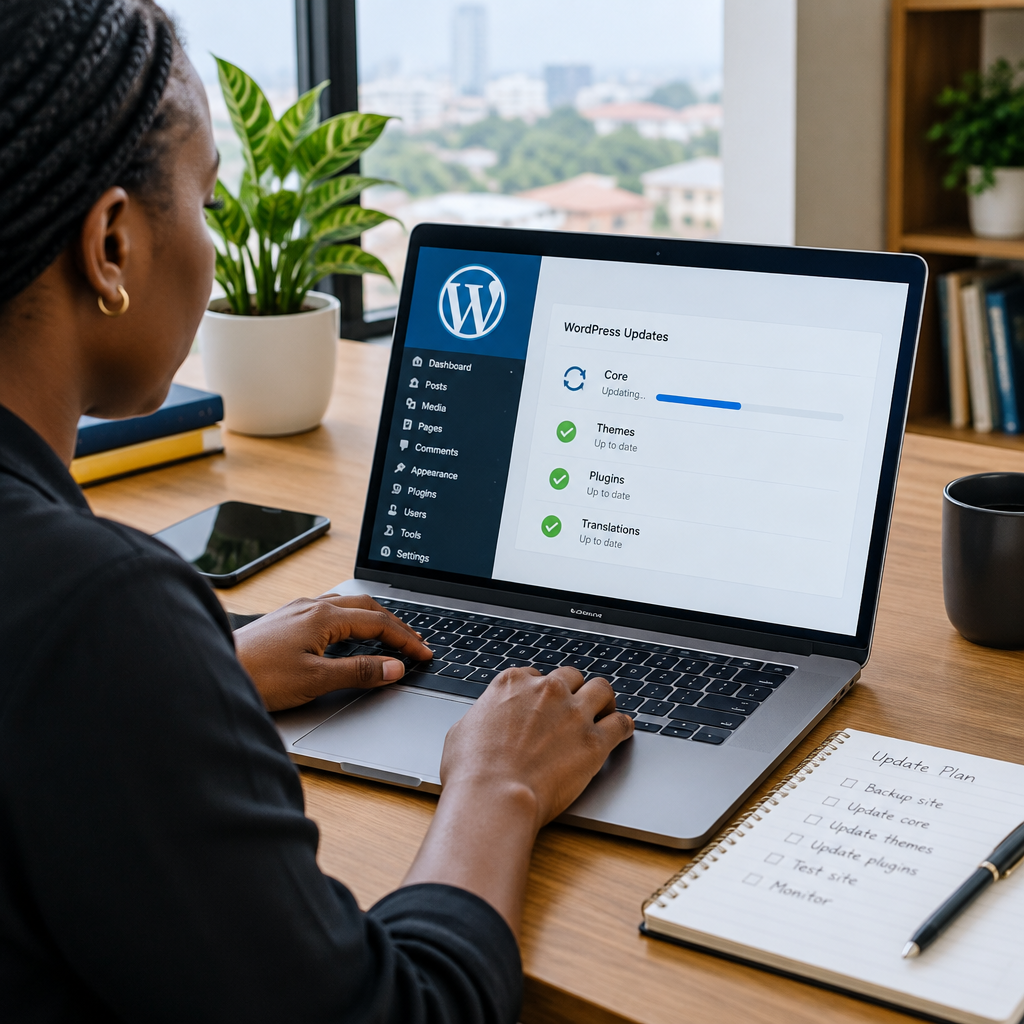
How to Plan WordPress Updates Without Breaking Your Website

How to Plan WordPress Updates Without Breaking Your Website

WordPress updates are important for security, compatibility and performance, but clicking “Update” without a plan can create avoidable problems. A new plugin version may conflict with your theme, an outdated PHP setting may expose compatibility issues, or a small design change may affect an important enquiry form.

For a Nigerian small business, creator or organisation, even a short disruption can mean missed enquiries, abandoned purchases or customers seeing an unprofessional website. The goal is not to avoid updates. It is to make them predictable, reversible and easier to manage.

Why WordPress updates sometimes cause problems

A WordPress website is made up of several connected parts:

  • The WordPress core software
  • The active theme that controls the site’s design
  • Plugins that add features such as forms, payments, backups or search engine tools
  • The hosting environment, including PHP, databases and server settings
  • Custom code or changes added by a developer

Each part may be maintained by a different developer. An update can change how one component works with another. For example, a plugin may depend on a function that has been removed from an older theme, or two plugins may attempt to modify the same part of the website.

This does not mean updates are unsafe. It means they should be treated as maintenance work rather than as a routine button-click.

Start with an update inventory

Before changing anything, record what is installed and identify which parts are important to the business. In the WordPress dashboard, review the versions and update notices for core software, themes and plugins.

Pay particular attention to:

  • Plugins used for contact forms, bookings, payments or customer accounts
  • Security, caching and performance plugins
  • Backup plugins and external storage connections
  • Page builders and themes that control much of the site’s layout
  • Custom plugins or code created specifically for the website

Remove plugins and themes that are no longer needed, but do this carefully. Deactivating an item is not always the same as removing it, and some tools may store settings or data in the database. If you are unsure, document the item first and ask a qualified WordPress professional or managed support provider to review it.

Also confirm who controls the essential accounts. The business should retain access to its domain registrar, hosting account, WordPress administrator account, business email and backup storage. A website should not depend entirely on a former employee, developer or agency whose contact details are no longer available.

Back up before making changes

A recent backup is your safety net. It should include both:

  • The website files, including WordPress core files, themes, plugins and uploaded images
  • The database, which usually contains pages, posts, settings, user records and other important content

Do not assume that a backup exists simply because a backup plugin is installed. Check when the last successful backup ran, where it is stored and whether it can be restored. A backup saved only inside the same hosting account may not help if the account or server has a serious problem.

For a business website, a practical recovery plan should answer three questions: What is being backed up? Where is the backup stored? Who knows how to restore it?

If your website generates frequent orders, enquiries or registrations, schedule maintenance during a quieter period and take a fresh backup immediately before the update. For smaller brochure websites, the same principle applies even if the update itself takes only a few minutes.

Use a staging site when the website matters

A staging site is a separate copy of the website where updates can be tested before they are applied to the live version. It allows you to check compatibility without immediately affecting visitors.

A useful staging workflow is:

  1. Create or refresh the staging copy from the live website.
  2. Confirm that the copy contains recent content and settings.
  3. Apply updates to WordPress, plugins and themes in a controlled order.
  4. Test the important functions and pages.
  5. Record any problems and resolve them before updating the live site.

Staging is especially useful for websites with online payments, membership features, booking systems, large page builders or custom development. It may be less practical for a very simple site, but even then a verified backup and a short testing plan are valuable.

Update in a controlled order

There is no universal update order for every website, so review the release notes and the dependencies between components where available. A sensible approach is to avoid updating everything at once. Make one related group of changes, test it, and then continue.

For example, you might update a plugin that has a security fix, test the site, and then update other plugins. This makes it easier to identify which change caused a problem. Applying fifteen updates simultaneously may save a few minutes, but it can make troubleshooting much harder.

Do not update a theme by replacing a customised parent theme if important changes were made directly to its files. A child theme or a properly documented customisation may be needed. If a developer has modified the site, ask what was changed before updating the theme or page builder.

Test the website like a customer

Technical indicators alone do not confirm that a website is working. After updating, test the actions visitors use most often:

  • Open the homepage and several important pages on a phone.
  • Submit a contact or enquiry form and confirm that the message arrives.
  • Check links, menus, images and downloadable files.
  • Test account login, booking or payment functions if they are available.
  • Check that HTTPS is working and that browsers do not display security warnings.
  • Review the website in more than one browser.
  • Confirm that new content can be edited and published.

Mobile testing deserves particular attention because many customers in Nigeria and across West Africa access business websites using phones. A layout that appears acceptable on a desktop computer may have a hidden menu, overlapping text or a difficult-to-use form on a smaller screen.

Know what to do if something breaks

If the website develops a problem, avoid making several unrecorded changes at once. First, describe the symptom: Is the whole site unavailable, is the dashboard inaccessible, or is one feature failing? Note the time and the update that was made.

Then consider the least disruptive response. If a particular plugin is clearly responsible and the dashboard is still available, temporarily deactivate it and test the site. If the problem is more serious, restore the affected files or database from a verified backup. A restoration should be handled carefully because restoring an old database can remove newer enquiries, orders or content.

For businesses that do not have the time or technical confidence to troubleshoot these issues, managed WordPress support can reduce the burden. The important point is to have a support route agreed before an emergency, not after the website has already gone offline.

Create a maintenance schedule that fits the business

WordPress maintenance should be regular, but it should not be automatic in every situation. A small business can use a simple schedule:

  • Weekly: Review security alerts, backup status and website availability.
  • Monthly: Check updates, test important forms and review unused plugins or accounts.
  • Before major updates: Take a fresh backup and use staging where possible.
  • After updates: Test customer-facing functions and record what changed.
  • Periodically: Review domain renewal access, hosting access, administrator accounts and recovery contacts.

The schedule should reflect the website’s role. A site that only displays opening hours may need less hands-on attention than one that receives orders, payments or sensitive customer information.

The practical takeaway

Safe WordPress updates depend less on technical confidence than on preparation. Keep an inventory, protect the files and database, test important functions, update in controlled stages and maintain access to the domain, hosting and recovery accounts.

If updates are difficult to fit around serving customers, hosting and managed WordPress support can provide a more practical arrangement. The aim is not to make every business owner a server administrator. It is to keep the website secure, available and useful while the business focuses on its customers and growth.
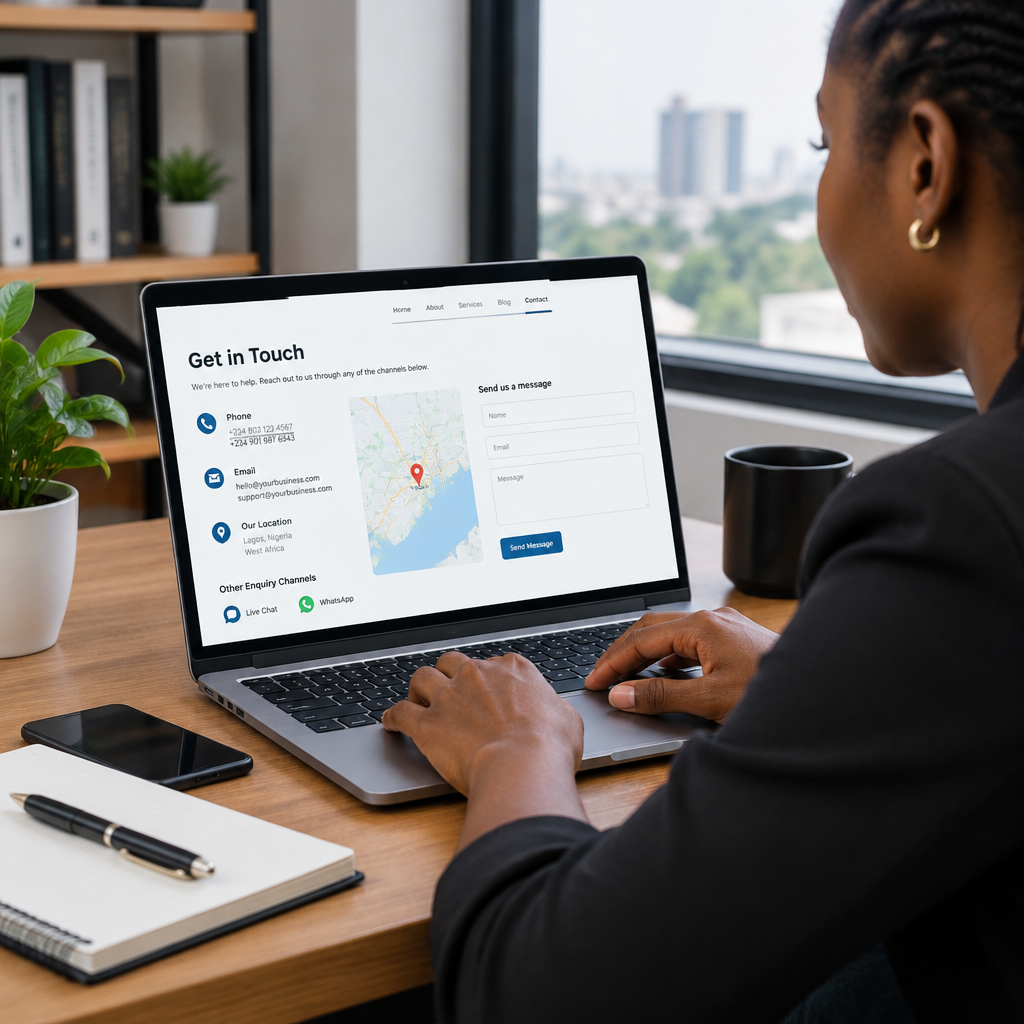
How to Keep Website Contact Information Accurate

How to Keep Website Contact Information Accurate

A customer may be ready to buy, request a quotation or ask for support, but inaccurate contact information can stop the conversation before it starts. A phone number that no longer works, an inbox nobody checks or a contact form that silently fails can make a legitimate business appear unreliable.

For Nigerian small businesses, entrepreneurs and organisations, accurate contact information is especially important because customers may contact you through several channels. Some prefer WhatsApp or a phone call, while others use email, a website form or social media. Your website should make the next step clear and ensure every advertised channel leads to someone who can respond.

Keeping these details accurate is not a one-time task. It is a simple part of website maintenance that protects customer trust, reduces missed enquiries and supports a more professional online presence.

What counts as website contact information?

Contact information includes more than the telephone number on your Contact page. Review every place where a visitor might look for a way to reach you, including:

  • Phone numbers and WhatsApp links
  • Business email addresses
  • Contact and quotation forms
  • Physical address, service area or office hours
  • Social media links
  • Customer support or emergency contact details
  • Names and roles of people listed on the website
  • Calls to action such as “Book a consultation” or “Request a quote”

Details can also appear outside the main website. Google Business information, online directories, social media profiles, email signatures, invoices and digital advertisements should not contradict what your website says.

Why outdated details cause real business problems

Incorrect information creates friction at the exact point when a potential customer is trying to take action. If a visitor calls an old number several times without an answer, they may contact a competitor instead. If a form sends messages to an inbox that is no longer monitored, the business may never know that a lead was lost.

Inconsistent information can also create uncertainty. For example, a website may show one address while a business listing shows another. A customer may wonder whether the organisation has moved, whether the website is still active or whether the business is dependable enough to handle their request.

Accurate contact details are part of a broader trustworthy online presence. Alongside reliable hosting, a suitable domain, HTTPS security and professional business email, they help visitors understand that the website is maintained and that the organisation is reachable.

Create one trusted source of information

Begin by deciding which internal record contains the approved version of your contact details. This might be a simple shared document, customer relationship system or business operations file. Include:

  • The official business name and preferred spelling
  • Primary and backup phone numbers
  • The monitored email address for general enquiries
  • Support, sales or department-specific addresses
  • Physical address or service coverage area
  • Opening hours and response expectations
  • Approved website, social media and messaging links
  • The person responsible for reviewing the details

This record prevents different team members from copying old information into new pages, adverts or documents. It also makes changes easier when an employee leaves, a phone number changes or the business moves.

Review the website from a customer’s perspective

Do not inspect only the Contact page. Visit the website as if you were a new customer using a mobile phone. Check the header, footer, homepage, About page, service pages, blog articles and checkout or booking pages. Look for old numbers, broken links, duplicate addresses and email addresses that are no longer used.

Pay attention to small details. A phone number may be correct in visible text but linked to an old number. An email address may look right but contain a spelling mistake. A map may point to a previous location. A WhatsApp button may open the wrong account or include an incorrect country code.

For a business serving customers in Nigeria, display phone numbers in a clear, consistent format and test how they work on mobile devices. If you serve customers outside Nigeria, make sure the international format is also understandable to them.

Test every contact method

A contact method is not confirmed until someone has tested the complete journey.

  1. Send a test message through each contact form.
  2. Call every published phone number during the stated business hours.
  3. Send a test email to each advertised inbox.
  4. Open WhatsApp and social media links on a phone.
  5. Check whether form notifications reach the intended recipient.
  6. Confirm that an acknowledgement or next step is shown after submission.
  7. Record how quickly the test enquiry is noticed and answered.

Forms deserve particular attention. A form can appear to work while messages are being blocked, sent to spam or delivered to an abandoned mailbox. Check the receiving inbox and the spam folder. If your website uses WordPress, include form testing in routine maintenance rather than assuming that a previously working plugin will continue working indefinitely.

Make responsibility clear inside the business

Contact details often become outdated because nobody owns the review process. Assign one person to approve changes and another person, if possible, to test the public channels. The responsible person does not need to be a server administrator or web developer; they need a clear process and access to the relevant accounts.

When staff, developers or contractors manage the website, the business should retain access to the domain, hosting account, business email and website administration. This is important when a former employee leaves or a service provider relationship ends. A company should not lose control of its digital assets or contact channels because the only person with access is no longer available.

Use domain-based email addresses such as info@yourdomain or sales@yourdomain where appropriate. These addresses can look more established than free personal accounts, but they must be monitored and maintained. A professional address is not useful if messages are never read.

Set a practical review schedule

The right review frequency depends on how often your business changes. A small organisation may review its details monthly, while a business with several staff, locations or campaigns may need a more frequent process.

At minimum, review contact information:

  • After changing a phone number, email address or location
  • When a staff member joins or leaves
  • Before launching an advertisement or promotion
  • After redesigning or migrating the website
  • After changing hosting, email or website form settings
  • Before busy sales periods or important events
  • As part of a regular monthly website maintenance task

Keep a simple change log with the date, information changed, pages affected and person who tested the result. This is useful when a problem appears later and helps prevent the same update being missed in another channel.

Use a short accuracy checklist

Before considering the review complete, ask:

  • Can a new visitor find a contact option within a few seconds?
  • Are the phone numbers, email addresses and links correct?
  • Does every contact form reach a monitored inbox?
  • Are the response hours and service areas still accurate?
  • Do the website, business listings and social profiles agree?
  • Can the responsible staff member access the relevant accounts?
  • Has someone tested the process on a mobile phone?
  • Are automated replies, email signatures and confirmation messages current?

A small maintenance task with a large effect

Accurate contact information is one of the simplest ways to improve a website’s usefulness. It does not require a complex redesign or an expensive hosting plan. It requires an approved record, clear ownership and occasional testing.

For businesses building their online presence, the best approach is to treat contact details as operational information, not decorative website text. Keep them consistent, protect access to the domain and business email, test forms and links, and update every public channel when something changes.

When customers can quickly find the right way to contact you—and receive a response through that channel—your website does more than look professional. It becomes a dependable part of how your business serves people and creates opportunities.

Your Cart

©2018 - currentyear Sonhosting • By Digital Nigeria - RC 7487481
All Rights Reserved
Powered by ShootOut Now Services