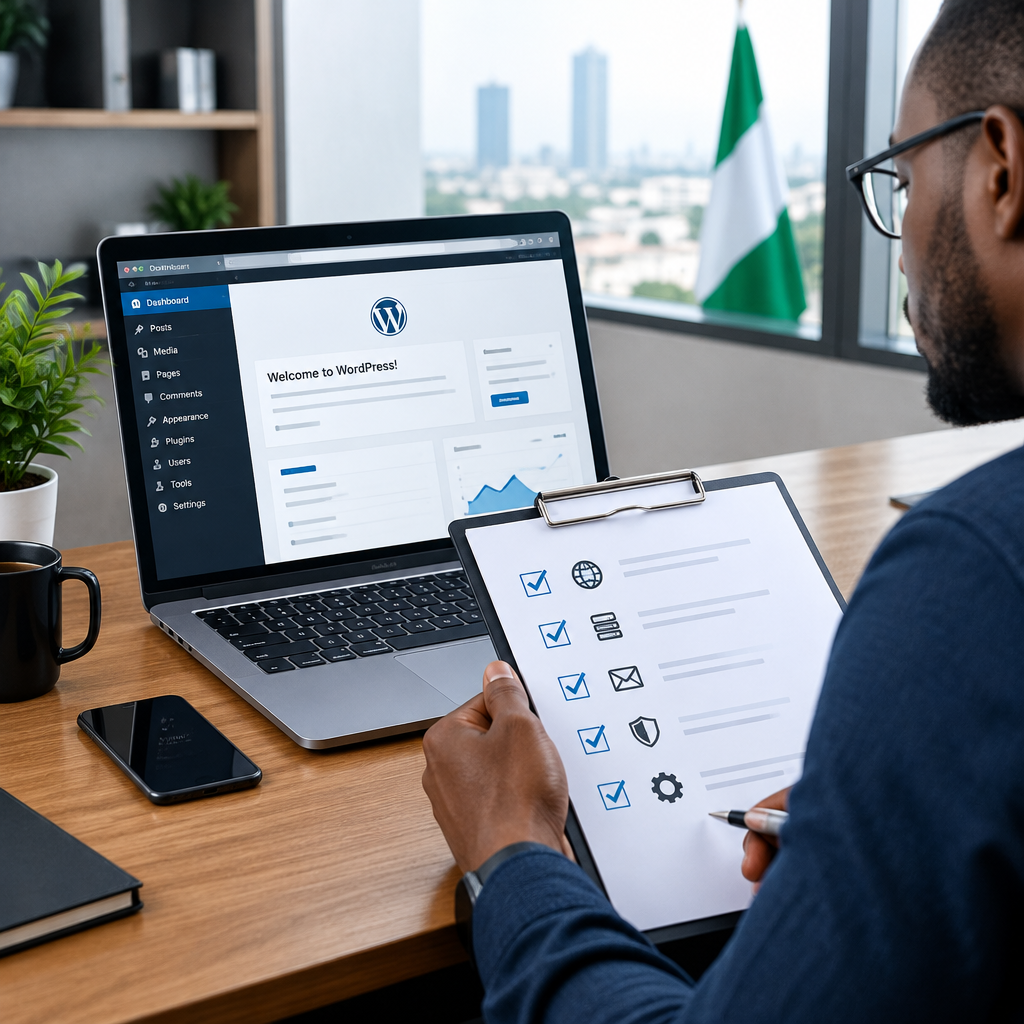
A WordPress Website Handover Checklist for Business Owners
A WordPress website may look complete when the pages are designed and the contact form works. But a proper handover involves more than receiving a login and a congratulations email. You also need to know who controls the domain, where the website is hosted, how it is backed up and what to do when something goes wrong.
This matters especially for small businesses, entrepreneurs and organisations that rely on one website for enquiries, sales and credibility. If access is missing or ownership details are unclear, you could struggle to renew your domain, update your website, recover from a security problem or change providers later.
Use this checklist before accepting a new WordPress website, redesign or migration. You do not need to become a server administrator. The goal is to confirm that your essential digital assets are accessible, documented and supported.
1. Confirm who owns the essential accounts
The business owner or organisation should retain control of the accounts connected to the website. A developer, employee or hosting provider may help manage them, but the business should not be dependent on one person’s private email address.
Confirm that you can access:
- The domain registrar account
- The web hosting account
- The WordPress administrator account
- The business email or email hosting account
- The Google account or other tools used for website measurement, if applicable
- The payment account used for renewals
Use a business-controlled email address for important accounts rather than an employee’s personal address. Store recovery details securely, and make sure more than one authorised person knows how to access the information when appropriate.
For a Nigerian business, this basic ownership step can prevent serious disruption if a designer leaves, a freelancer becomes unreachable or a company changes its website provider.
2. Check the domain registration details
Your domain is the address customers use to find you. It is separate from your website hosting, so receiving access to WordPress does not necessarily mean you control the domain.
Check the following:
- The domain name is spelled correctly and matches the name customers recognise.
- The registrant or account information belongs to the business or organisation.
- The registration email address is current and accessible.
- The renewal date is recorded somewhere reliable.
- Auto-renewal or renewal reminders are configured appropriately.
- You know where to manage domain settings such as nameservers and DNS records.
If you use a local domain or another country-code domain, keep a record of the provider and any account requirements. Domain policies and renewal processes can vary, so do not rely on the developer’s memory or an old invoice.
Do not transfer or change domain settings casually during handover. First document the current setup, then make changes only when you understand what services depend on the domain.
3. Verify hosting access and renewal information
Hosting is where the website’s files and database are stored. Ask for the hosting provider’s name, account login method, renewal date and support contact. You should also understand whether the website is on shared hosting, a virtual private server or another type of service.
The most expensive option is not automatically the right one. A small company website may need dependable hosting and practical support rather than a complex setup designed for a much larger operation. The important question is whether the service suits the website’s size, traffic, email needs, growth plans and management requirements.
Confirm whether your hosting arrangement includes:
- SSL or HTTPS support
- Backups and how long they are retained
- WordPress management or technical support
- Email hosting, if email is provided through the same account
- A way to restore the website after a serious problem
- A clear process for reporting technical issues
Ask for a plain-language explanation of what the provider manages and what remains your responsibility. This is particularly useful when a business wants reliable hosting without handling advanced technical tasks itself.
4. Test the WordPress administrator account
Log in to WordPress using an administrator account created for the business. Check that you can edit a page, update contact details and publish a test change without affecting the live website unnecessarily.
Review the user list and remove old accounts that no longer need access. Change passwords that were shared during development. Avoid giving every user administrator privileges; most people only need the role required for their work.
Also confirm that:
- The website title and business name are correct.
- The site address uses the correct domain and HTTPS.
- The administrator email address is monitored.
- The time zone and language settings are suitable.
- Permalinks and navigation work as expected.
Keep a separate record of the WordPress version, theme and important plugins. This helps a support provider understand the website if you need assistance later.
5. Inspect the website’s content and contact paths
A technical handover is not complete if customers cannot reach the business. Test the website as a visitor on both a phone and a computer, because many Nigerian customers access websites primarily through mobile devices.
Check the main pages, including the home page, about page, service or product pages, contact page and any booking or enquiry page. Look for outdated phone numbers, incorrect email addresses, missing business hours, broken links and placeholder text.
Complete every important form yourself. Confirm that:
- The form accepts a normal enquiry.
- The visitor sees a clear confirmation message.
- The business receives the notification.
- The reply-to address makes it possible to respond to the customer.
- Messages are not being sent to an individual who no longer works with the business.
If the website accepts payments, registrations or sensitive information, ask specifically how transactions and customer data are handled. Do not assume that a working form is automatically a secure or suitable payment system.
6. Confirm SSL, security and user protections
Open the website using https:// and check that the browser does not report a security warning. HTTPS helps protect information exchanged between the visitor and the website, and it is an expected part of a professional online presence.
During handover, confirm the basic security arrangements:
- Strong, unique passwords are used for important accounts.
- Two-factor authentication is enabled where available.
- Unused WordPress themes and plugins have been removed.
- Installed plugins and the theme have a known maintenance process.
- Administrative access is limited to people who need it.
- There is a plan for handling suspicious activity or a compromised account.
No website can be treated as permanently risk-free. Security is an ongoing responsibility involving updates, access control, backups and monitoring.
7. Request a backup and restoration explanation
Ask when the last backup was made, where backups are stored and how a restoration would be performed. A backup that has never been tested may not provide the confidence you expect.
You do not need to understand every server command, but you should know who is responsible for restoring the website and how to request help. Ask whether backups cover both the WordPress files and the database. A website may not be recoverable if only one of these is saved.
Before a major change, such as a redesign, migration or plugin update, make sure a recent usable backup exists. Keep important business content, branding files and account records separately where practical.
8. Document the website before signing off
Create a simple handover document and store it somewhere the business controls. Include:
- Domain name, registrar and renewal date
- Hosting provider and renewal date
- WordPress administrator process
- Email provider and important mailboxes
- Theme and plugin list
- Backup arrangements
- Support contact and escalation process
- Any known limitations or unfinished work
Never place passwords in an ordinary document or send them casually in a group chat. Use a suitable password manager or another secure sharing method.
9. Agree on ongoing maintenance
WordPress websites need continuing attention after launch. Agree on who will update WordPress, plugins and themes, monitor forms, manage backups and investigate problems.
If you prefer to focus on serving customers rather than managing technical details, managed WordPress support can be a practical option. The right arrangement should match your budget, website importance and comfort with technical work. It should also explain what support includes rather than leaving responsibilities unclear.
A simple final sign-off test
Before approving the handover, ask yourself:
- Can the business access and renew its domain?
- Can an authorised person reach the hosting provider?
- Can the website be edited without relying on one individual?
- Do contact forms, business email and key links work?
- Is HTTPS active?
- Are backups available and is restoration responsibility clear?
- Are passwords, users and recovery details under control?
- Is there a written maintenance and support plan?
A successful handover leaves the business with more than a functioning website. It leaves the owner with control, visibility and a sensible plan for keeping the website available, secure and useful. When hosting, domains, business email and WordPress support are managed clearly, technical work can stay in the background while the business concentrates on customers and growth.